Roku Screen Mirror & Cast TV
- 4.1
- Rating
- 1.00M
- Installs
- Free
- Price
 Analysis by App-foxy
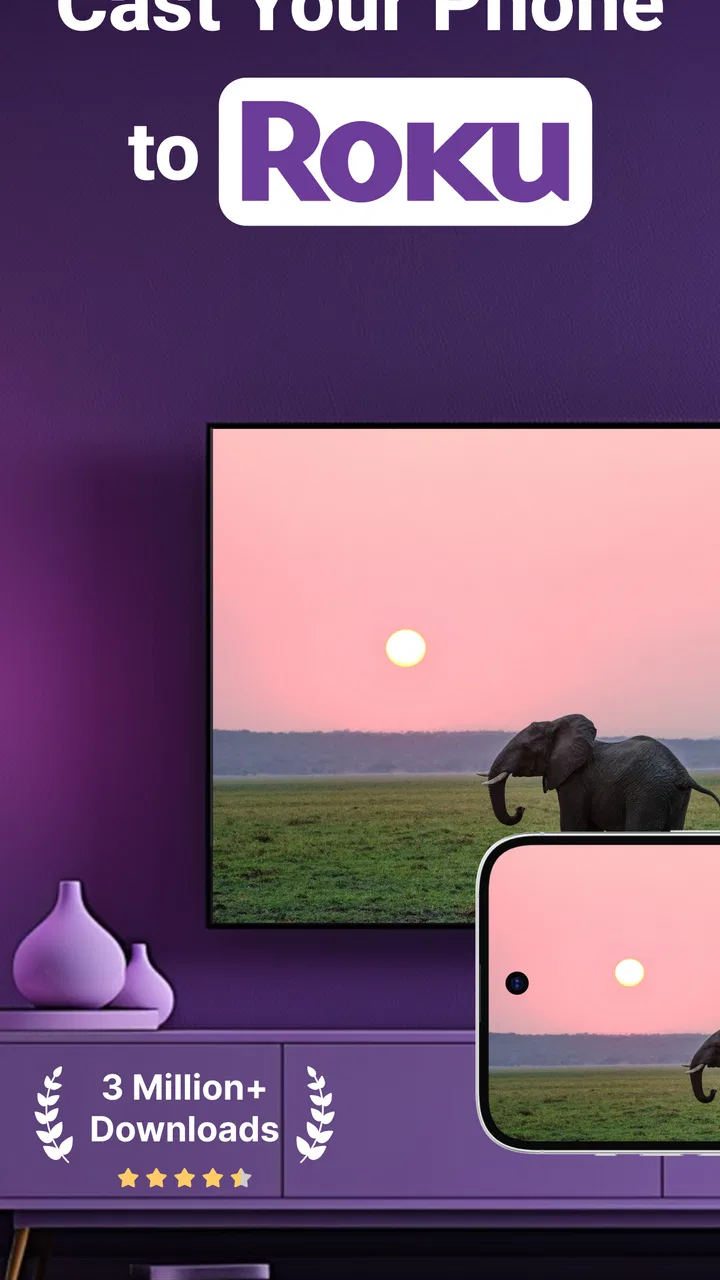
I approached Roku Screen Mirror & Cast TV as a practical tool rather than a flashy entertainment app. Its purpose is straightforward: help you mirror an Android or iOS device to a Roku-connected television, send photos to the larger screen, and cast compatible web video. That makes it especially interesting for people who want to share something from a phone without passing the device around the room.
My first impression is that it sits in a useful middle ground. It is easier to understand than a full media-server setup, but it is not a magic button that removes every connection issue. The quality of the experience depends heavily on the phone, Roku device, television, and home network working together. Once that basic relationship is clear, the app becomes much less intimidating.
What to expect before you start
This is a free productivity app from AirBeamTV BV, although it includes optional purchases priced from $5.49 to $39.99 per item. The free entry point is helpful because I can test whether my Roku and phone cooperate before deciding whether I need anything extra. It is aimed at Everyone, so the basic concept is accessible to families, students, and casual home users rather than only technically confident people.
You May Also Like

 Blood Strike: 2.5 Anniversary
Blood Strike’s Loadouts Turn Every Drop Into a Tactical Gamble
A close look at Blood Strike’s custom loadouts: how fast access to signature weapons reshapes its battle royale rhythm, rewards preparation, and narrows the gap between fights.

 Pandora - Music & Podcasts
Pandora’s Music Is Easy to Start, but Harder to Recover
Pandora’s strength is its low-effort path from a seed to a station. Its weak spot is how much confidence it asks you to place in connection, setup, and quiet recovery.

 8 Ball Pool
 Is Built on Rivalries, Rematches, and Routine
A close look at the rivalries, rematches, shared routines, and unanswered safety questions that turn a quick pool match into a persistent mobile community.

 Samsung Music
’s Quiet Strength Is Playing What You Already Own
Its reach comes less from spectacle than from dependable access to a personal library. That simplicity is both the app’s strongest retention engine and its ceiling.

 AccuWeather: Weather Radar
AccuWeather Review: A Quick, Clear Forecast for Everyday Decisions
For everyday plans, the best forecast is the one you can understand quickly. AccuWeather makes rain timing, radar, and local conditions easy to act on, with a few trade-offs.

 Hill Climb Racing
Why Hill Climb Racing Still Turns Crashes Into One More Run
A tiny car, a bumpy hill and one more upgrade: Hill Climb Racing keeps resurfacing because its simple chaos makes every near-miss feel personal.
More From Our News Desk



The app has built a sizeable audience, with over a million installs and an average rating of 4.1 from around twenty thousand ratings. Those figures suggest that the idea solves a common problem, while also hinting that the experience may vary between devices and households. Screen mirroring is one of those tasks where a good app cannot completely compensate for an incompatible television setting or a weak wireless connection.
The current version is 3.11, and the app requires Android 10 or later. That requirement matters if you are trying to revive an older phone for occasional television use. I would check the operating system before planning a presentation or movie night, because discovering the compatibility limit at the last minute is more frustrating than spending a minute checking first.
The most useful way to think about the app is as a bridge between small-screen content and a Roku display. It is not automatically a replacement for every streaming service’s own casting button, and it should not be treated as a universal solution for protected video. For ordinary photos, browser-based clips, demonstrations, and personal content, it can be much more convenient than gathering everyone around one phone.
Who will get the most from it
I see the strongest fit for someone who owns a Roku television or Roku streaming device and regularly wants to show phone content to other people. A parent might display vacation photos, a student might present a mobile web page, or a family might watch a short clip together without relying on the phone’s small speaker and screen.
It is also useful when the content does not have a dedicated Roku app. A website, an image saved on the phone, or a page that is awkward to navigate with a remote can be easier to handle on the phone and then display on the television. That phone-first workflow is the app’s real advantage over simply opening a Roku channel and searching with the remote.
I would be more cautious if your main goal is watching subscription video services for long periods. Many services use playback restrictions that can interfere with mirroring or web-video casting. In that situation, the service’s official Roku app is usually the cleaner option, with better controls and fewer surprises.
Setting up the first connection
I recommend beginning with the simplest possible test: place the phone and Roku television on the same home network, open the app, and look for the television or Roku device it can connect to. Keeping both devices nearby makes it easier to notice whether the television reacts and avoids confusing a network problem with an app problem.
Do not start with a complicated webpage or a large album. A single photo is a better first test because it removes several variables at once. If one image appears on the television, you have already confirmed the basic connection and can move on to more demanding activities with greater confidence.
The first connection may feel less immediate than pairing wireless headphones. A Roku device can be visible on the network while still requiring an on-screen confirmation or a compatible setting. If the television asks you to allow a connection, read the prompt carefully rather than repeatedly tapping buttons in the phone app. The goal is to establish trust between the two devices, not to restart the search.
A useful preparation step is to close other apps that are heavily using the network, especially cloud backups or large downloads. This is not a special feature of the mirroring app; it is simply good troubleshooting. A crowded wireless connection can make a perfectly good setup look unreliable, with pauses that are mistakenly blamed on the television.
If the Roku does not appear, I would check the basics in a fixed order: confirm that both devices are on the same network, wake the television, reopen the app, and then restart the connection if necessary. Avoid changing several settings at once. A methodical approach makes it much easier to identify whether the issue is discovery, permission, or playback.
The first successful action should be small
Once the connection is active, I would send one photo before attempting video. Photo sharing is a reassuring first success because the result is easy to recognize and does not depend on continuous playback. It also shows you how the image is framed on the television, which can reveal whether the phone’s orientation needs adjusting.
This is where the photo-stream use case becomes more valuable than it may sound. At a family gathering, I can select a few relevant pictures on the phone and let everyone see them at a comfortable size. The phone remains the control surface, while the television becomes the shared display. That is less disruptive than uploading the pictures somewhere or asking people to install another service.
For web video, I would start with a short, openly playable clip rather than a long film. The app’s web-video casting function can be convenient when a browser page is the natural place to find the content, but web pages vary widely. Some have a clear video player, some load advertising or several embedded players, and some restrict external playback entirely.
When a clip works, keep the phone awake until you understand how the session behaves. Depending on the type of content and the way it is being mirrored or cast, the phone may remain important for control. I would not assume that every webpage becomes an independent Roku playback session simply because it appears on the television.
For a presentation, I would prepare the material before connecting. Open the pages, arrange the photos, and close unrelated notifications. This reduces the chance of showing private information on the big screen and makes the experience feel deliberate. A quick rehearsal with one image and one webpage is usually enough to expose problems before an audience is waiting.
Where first-time users often get confused
The biggest conceptual difference is between screen mirroring and casting. Mirroring reproduces what is happening on the phone, so changing apps or opening a notification can affect what appears on the television. Casting web video may behave more like sending a particular piece of media, but the exact experience depends on the webpage and the content. Treating both modes as identical can lead to unnecessary frustration.
Another common misunderstanding is expecting the television to improve the source. A low-resolution photo or unstable web stream will not become sharper simply because it is displayed on a larger screen. The television makes weaknesses more visible. For photos, I prefer using the original image rather than a compressed copy sent through a messaging app.
There can also be a delay between an action on the phone and the result on the television. That is acceptable for browsing photos or demonstrating a page, but it makes the app a poor choice for fast mobile games or activities that demand precise timing. I would use it for showing a game concept to friends, not for competitive play where every touch matters.
Orientation deserves attention as well. A vertical phone screen may leave unused space on a wide television, while rotating the phone can make a landscape video more comfortable to watch. I find it better to choose the orientation based on the content instead of forcing every item into the same layout.
Notifications are another practical concern. In a mirrored session, a private message or calendar reminder may become visible to everyone in the room. Before sharing a screen at work, school, or with guests, I would enable a suitable focus or do-not-disturb mode and close sensitive apps. This small habit is more important than any visual setting because it prevents an embarrassing interruption.
Three workflows that make the app more useful
My first recommended workflow is a “select, connect, share” routine for photos. I choose the images before starting the session, connect to the Roku, and then move through only the pictures I intend to show. This avoids the awkward pause of searching through a crowded camera roll while the television displays every accidental swipe.
The second is a browser demonstration workflow. I open the webpage first, dismiss pop-ups, confirm that the desired video or page loads normally on the phone, and only then send it to the television. This separates website problems from connection problems. If the page fails before casting, I know the Roku is not the cause.
The third is a rehearsal workflow for presentations. I use the television as a confidence check rather than assuming that a layout that looks fine on a phone will look fine from across the room. Small text, cropped images, and pages with distracting sidebars can all become obvious on a larger display. If the content is too dense, I simplify it before the real presentation.
These workflows expose an important trade-off: the app gives the phone a convenient role as a remote and content source, but that also means the phone remains part of the chain. If the phone battery is low, the network is busy, or the browser page changes unexpectedly, the television experience can suffer. For a short sharing session that trade-off is reasonable; for a long, hands-off viewing session, a native Roku app is usually more dependable.
How it compares with the usual alternatives
The most obvious alternative is the Roku platform’s own channels. Official channels generally win when the service you want is already available because they are designed around the television interface and remote control. They are usually the better choice for regular viewing, repeatable playback, and content that requires account management.
Phone-native casting buttons can also be preferable when a particular video service supports them directly. A dedicated casting system may hand playback over more cleanly than full-screen mirroring, leaving the phone free for other tasks. However, those buttons are not available on every website or for every type of content, which is where this app can fill a gap.
Direct screen-mirroring tools built into a phone may be simpler if your television supports them natively. The advantage of a Roku-focused app is that it gives users a specific route toward Roku displays instead of asking them to guess which wireless display standard their television accepts. The disadvantage is that another app sits between the phone and the screen, so compatibility still needs to be tested.
For local media libraries, a dedicated media-server solution can offer better organization and more stable long-form playback. That approach takes more preparation, though. I would choose this app when I want to share something now, especially a photo or a webpage, rather than build a permanent catalog of videos.
When I would skip it
I would skip it if your devices are not running a compatible operating system, if your Roku is not connected to the same home network as the phone, or if you need guaranteed playback for a formal event without time for a test. In those cases, a wired connection or an official television app may offer a safer plan.
I would also avoid relying on it for fast games, highly protected streaming services, or content that must remain private while notifications appear on the phone. The app is strongest as a flexible sharing tool, not as a universal replacement for every television input.
The optional purchases deserve a sensible approach. I would use the free version to test discovery, photo sharing, and the type of web content I actually care about before considering an upgrade. Paying makes more sense when the app fits a repeated routine, not merely because the first connection feels exciting.
My next-step recommendation
After the first successful photo, I would create a simple personal routine: connect both devices to the same network, prepare the content, enable a privacy-friendly phone mode, and test one item before sharing everything. That sequence is quick enough for everyday use and protects against the most common mistakes.
I also recommend keeping expectations realistic about video. Try a short, openly playable web clip first, then test the specific site you intend to use regularly. A successful photo connection proves that the devices can communicate, but it does not guarantee that every website will cast in the same way.
For me, the app’s value is in those small moments when the phone has the content and the Roku television has the audience. It removes the need to crowd around a handheld screen and gives casual sharing a clear starting point. The experience is not flawless, and network conditions and content restrictions still matter, but the learning curve is manageable when the first test is kept simple.
Overall, I would recommend it to Roku owners who want a practical way to display phone photos, demonstrate webpages, or try web-video casting without setting up a larger media system. I would point heavy streamers toward official Roku channels and users who need low-latency interaction toward another solution. For everyone else, the best reason to try this app is its flexible phone-to-TV workflow: start with one photo, learn how your setup responds, and then decide whether it belongs in your regular sharing routine.
FAQs for Roku Screen Mirror & Cast TV
01What is Roku Screen Mirror & Cast TV and how does it work?
Roku Screen Mirror & Cast TV is an app that allows users to mirror their smartphone or tablet screens onto their Roku-enabled TVs. By connecting both devices to the same Wi-Fi network, users can stream videos, photos, and other media content from their phones directly to the TV, providing a seamless viewing experience.
02Is Roku Screen Mirror & Cast TV compatible with all Roku devices?
Roku Screen Mirror & Cast TV supports a wide range of Roku devices. However, compatibility may vary based on the model and firmware. It is recommended to check the app’s description on the download page for specific compatibility details to ensure it works with your particular Roku device.
03Does Roku Screen Mirror & Cast TV require additional hardware or cables?
No additional hardware or cables are required to use Roku Screen Mirror & Cast TV. The app utilizes your Wi-Fi network to connect your smartphone or tablet to your Roku device. Just ensure that both devices are on the same network for smooth mirroring and casting functionality.
04Are there any subscription fees or in-app purchases with Roku Screen Mirror & Cast TV?
Roku Screen Mirror & Cast TV may offer free basic features, but advanced functionalities might require in-app purchases or a subscription. It's vital to review the app store listing for detailed pricing information and to understand which features are included in the free version and which are part of the premium package.
05What are the main limitations of using Roku Screen Mirror & Cast TV?
One common limitation is potential lag or latency during screen mirroring, especially if the Wi-Fi connection is weak. Additionally, some apps or media formats may not be supported for casting. Users should ensure their devices meet the app's requirements for optimal performance and check for any known limitations with specific media formats or applications.
Pros
- Easy setup process for quick mirroring.
- Supports a wide range of video formats.
- Compatible with most Roku devices.
- Minimal lag for smooth streaming.
- User-friendly interface for all ages.
Cons
- Requires stable Wi-Fi for optimal performance.
- Limited support for older Roku models.
- Ads in the free version can be intrusive.
- Premium features require a subscription.
- Occasional connectivity issues reported.

Roku Screen Mirror & Cast TV
Gallery